
FastTrack bypasses speed limits
What Is FastTrack?
Section titled “What Is FastTrack?”FastTrack (also called Fast Path on some platforms) is a hardware/software acceleration feature that speeds up packet forwarding by bypassing the normal packet processing path for established connections.
While this improves router performance and reduces CPU load, it comes with a critical side effect — it skips firewall rules, queues, and bandwidth limits for any connection that gets offloaded.
The Problem
Section titled “The Problem”Symptom: A client assigned a 6 Mbps package is downloading at 34 Mbps or well above their limit.
Cause: FastTrack is enabled, and once a connection is offloaded to the fast path, it bypasses:
- Simple Queues
- Queue Trees
- Firewall filter rules
- L7 / Deep Packet Inspection rules (including torrent blocking)
- Mangle rules (marking, limiting, routing)
This means speed limits assigned to clients through queues are effectively ignored for any fasttracked connection.
How to Disable FastTrack
Section titled “How to Disable FastTrack”MikroTik (Winbox)
Section titled “MikroTik (Winbox)”- Go to IP > Settings
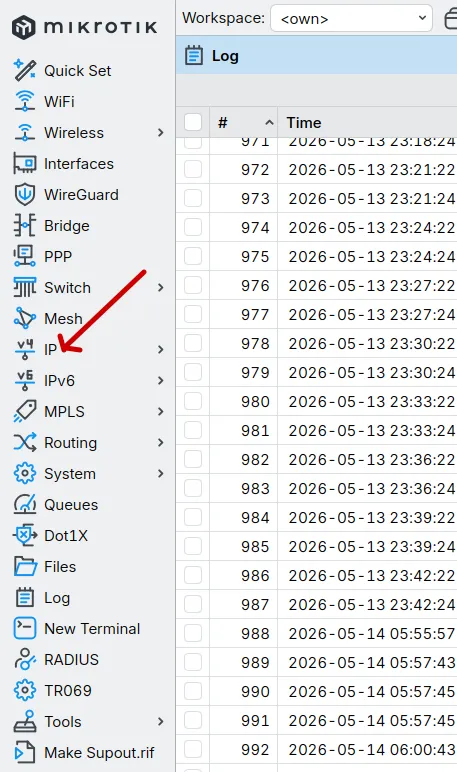
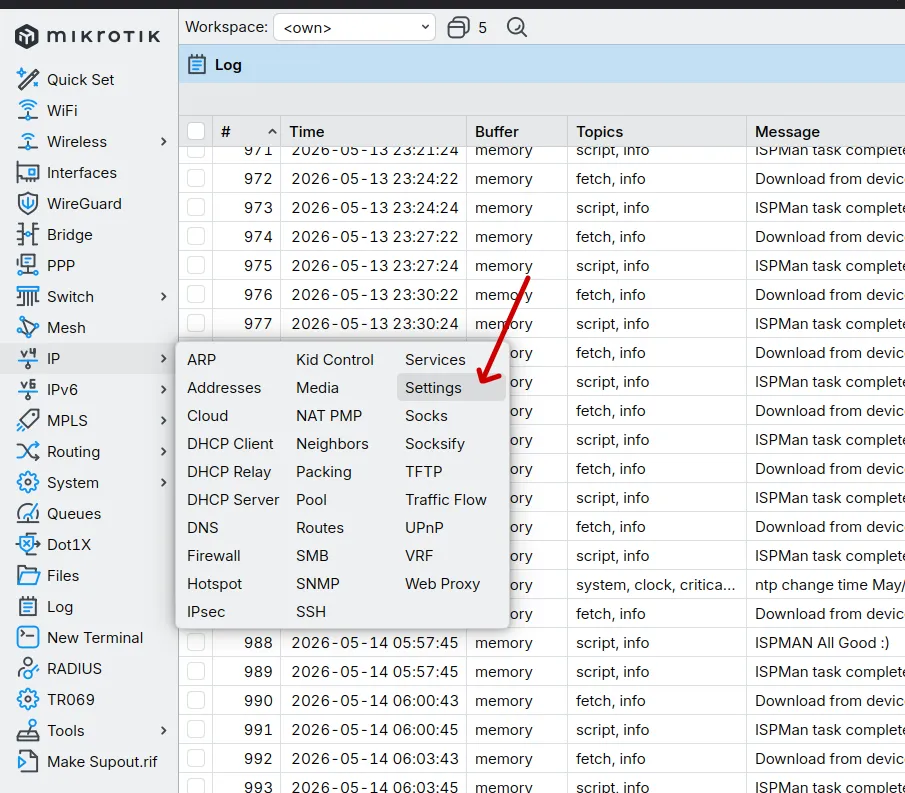
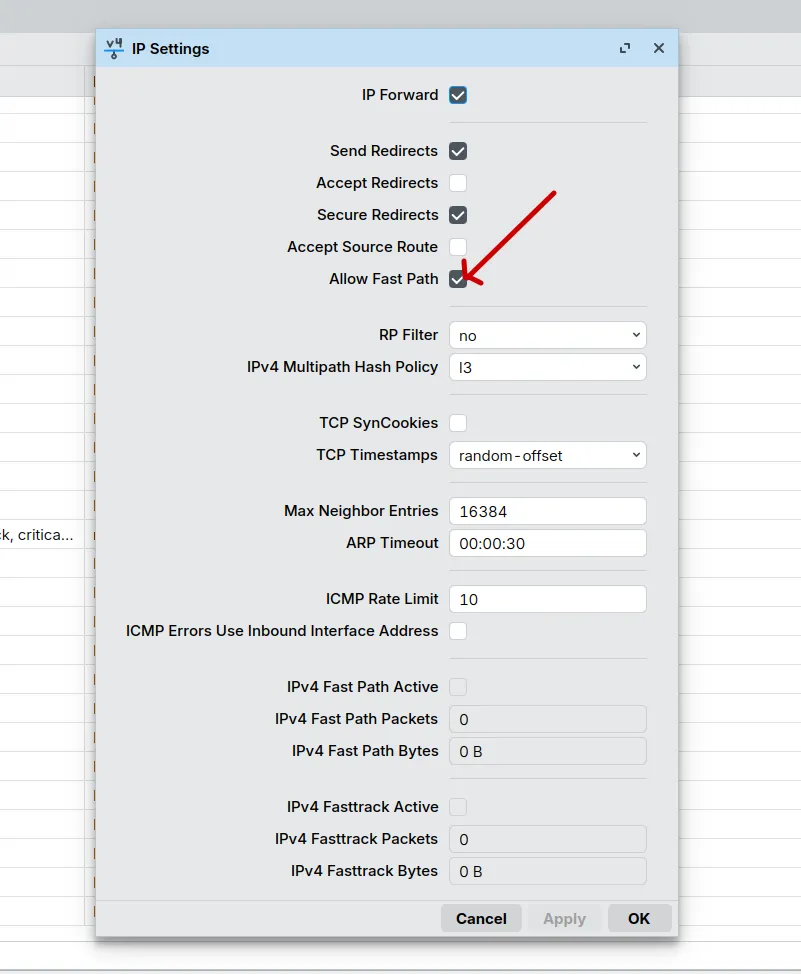
- Uncheck Fast Path
- Click OK
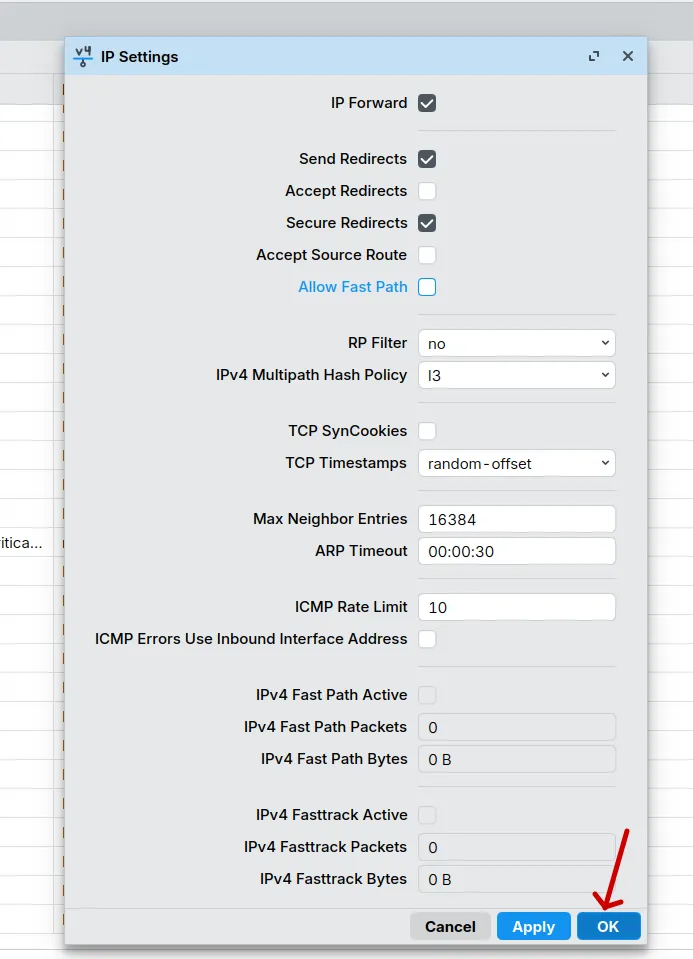
Note: The FastTrack rule visible in IP > Firewall > Filter Rules cannot be disabled or removed without doing a full hard reset of the router. The correct and only way to disable FastTrack on MikroTik is through IP > Settings > Fast Path.
Other Platforms
Section titled “Other Platforms”| Platform | How to Disable |
|---|---|
| pfSense | System > Advanced > Networking > uncheck hardware checksum offload / hardware TCP segmentation offload |
| OPNsense | System > Settings > Miscellaneous > uncheck hardware offloading options |
| Ubiquiti EdgeRouter | Config Tree > system > offload > set ipv4 forwarding and ipv6 forwarding to disable |
| Cisco IOS | Per interface — no ip route-cache or globally disable CEF with no ip cef |
| Fortinet FortiGate | CLI — set offload-offload-level none under the relevant policy |
Impact of Disabling FastTrack
Section titled “Impact of Disabling FastTrack”| Area | Effect |
|---|---|
| Bandwidth limits | Now enforced correctly — clients will not exceed their assigned package |
| Firewall rules | All rules now apply to every packet, including established connections |
| L7 / Torrent blocking | DPI and Layer 7 rules now inspect all traffic properly |
| CPU usage | Will increase since all packets go through full processing — monitor after disabling |
| Throughput | May slightly decrease on very high-traffic routers — test during off-peak hours |
When to Disable vs Keep Enabled
Section titled “When to Disable vs Keep Enabled”| Scenario | Recommendation |
|---|---|
| Clients exceeding assigned package speeds | Disable FastTrack |
| Torrent/L7 blocking not working as expected | Disable FastTrack |
| Mangle rules not matching traffic | Disable FastTrack |
| Router CPU is very high and queues are not needed | Keep enabled (accept trade-off) |
| High-throughput transit router with no per-client limiting | Keep enabled |
After Disabling — What to Check
Section titled “After Disabling — What to Check”- Verify speed limits are now enforced — test a client device and confirm it caps at the assigned package speed
- Check CPU usage — go to System > Resources and monitor load over 10–15 minutes
- Confirm torrent blocking is working — check that drop rule counters on torrent rules are now incrementing
- Check for any new complaints — some users may notice slightly different latency behaviour after the change
- On MikroTik, the only way to disable FastTrack is through IP > Settings > Fast Path. The FastTrack rule in the firewall cannot be disabled or removed without a full hard reset of the router.
- If CPU spikes after disabling FastTrack, consider upgrading to a higher-spec router or implementing connection limits per client to reduce total active connections.
- FastTrack only offloads established connections — new connection setup always goes through the full processing path regardless.